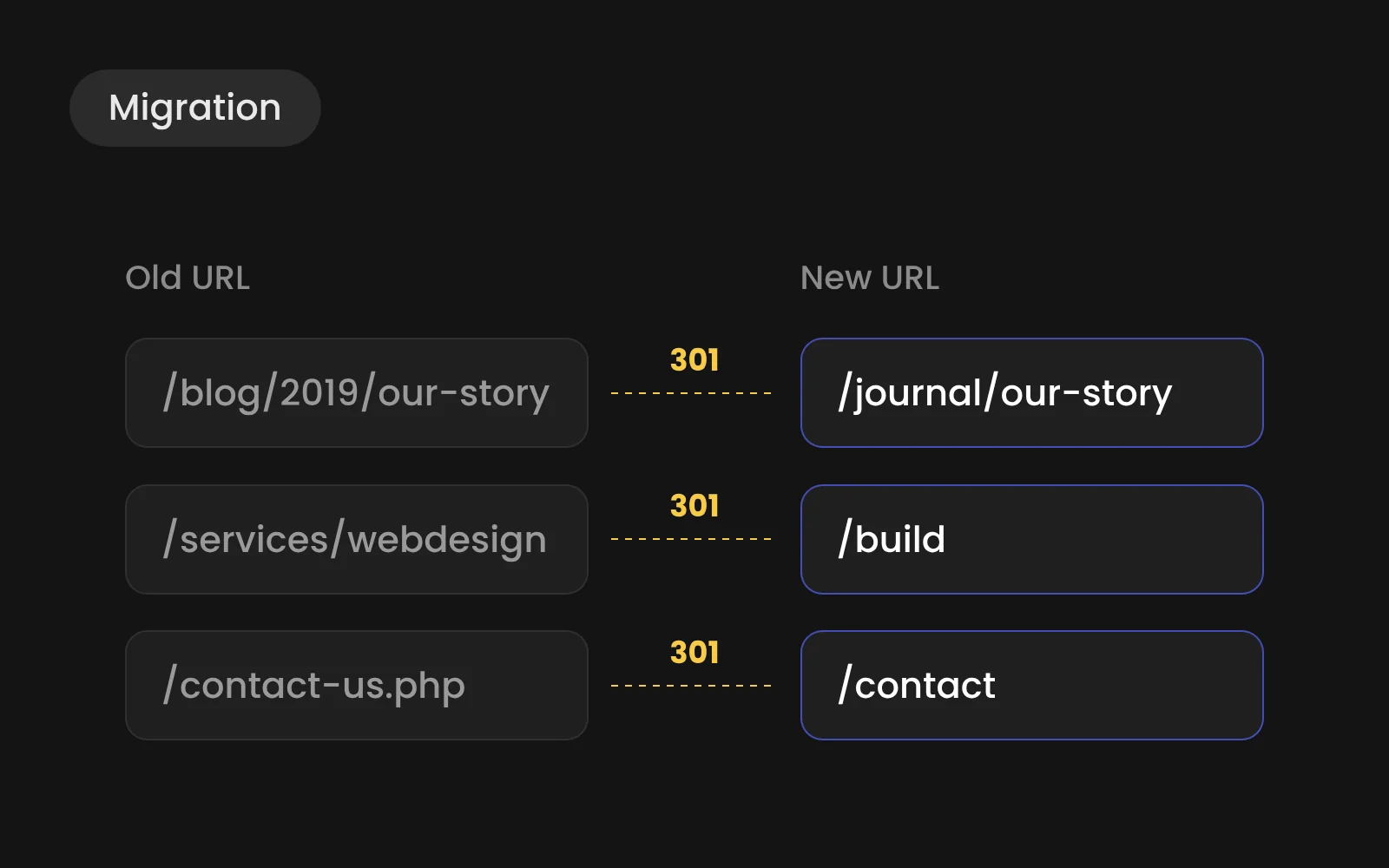
You keep your rankings when nothing search engines rely on disappears. Map every indexed URL to a new page or a 301 redirect, move content and metadata over intact, fix internal links and watch Search Console closely for the first 30 days. Rankings can wobble for a few weeks; a migration done this way usually settles at the old level or above it.
- Traffic loss comes from 404s, lost metadata, stale internal links and vanished pages.
- Map every old URL to a new page or a 301 redirect.
- Move content and metadata intact; fix plugin shortcodes by hand.
- Watch Search Console daily in week one and fix errors the same day.
Why migrations lose traffic
Traffic drops after a migration almost always come from the same four mistakes: old URLs that return a 404, titles and descriptions that were not carried over, internal links that still point to the old structure, and pages that quietly disappeared because nobody knew they ranked. All four are preventable.
Step 1: Take stock before you touch anything
Export every URL that matters: the sitemap, all pages with clicks or impressions in Search Console over the last twelve months, and pages with backlinks. Note for each page its title, meta description, H1 and traffic. This list is your safety net.
Step 2: Decide per page: keep, merge or drop
Not every old page deserves a place on the new site. Pages with traffic or backlinks stay or get merged into a stronger page. Thin pages without traffic can go, but still get a redirect to the most relevant new page.
Step 3: Map every old URL
Build a redirect map: old URL in one column, new URL in the other. WordPress often uses dated or category-based URLs; Webflow puts CMS items in a collection folder, such as /journal/article-name. Every change in that structure needs a 301 redirect. Webflow manages redirects in the site settings.
Step 4: Move content and metadata intact
Blog posts and other repeated content go into the Webflow CMS through a CSV import. Titles, meta descriptions, alt texts, publication dates and authors move with them. Check the rich text afterwards: embedded shortcodes from WordPress plugins don't survive the trip and need manual fixing.
Step 5: Rebuild what plugins used to do
List every plugin on the old site and decide what replaces it. SEO plugins become native Webflow settings. Forms become Webflow forms, connected to your CRM through n8n where needed. Structured data that a plugin generated now needs to be added per template.
Step 6: Test on staging, then launch
Before switching the domain, crawl the staging site. Look for broken links, missing titles and pages without an H1. Then test a sample of old URLs against the redirect map.
Step 7: The first 30 days
Submit the new sitemap in Search Console and Bing Webmaster Tools on launch day. Check the coverage report daily in week one for 404s and redirect errors, and fix them the same day. Compare clicks per page against your stock-take from step 1 after four weeks.
What a migration costs
The migration itself adds [€__] to a new Webflow site, depending on the number of pages and posts. See What does a Webflow website cost in 2026? for the full picture.